

Smarter AI Call Routing (Because "Press 1 for Frustration" Shouldn't Be Your Business Model)
Let’s be real. Nobody likes dealing with phone menus that make you feel like you’re about to break a world record for fastest decision-making. “Press 1 for this, 2 for that, 3 to scream into the void.” We’ve all been there, right?
Well, Launchpad has had enough of that. Our AI actually listens when customers call. It picks up on why they’re ringing and routes them straight to the right person or department without any awkward hold music or confusing choices.
The Secret Sauce Behind It:
Step 1: Customer calls your business.
Step 2: Our AI analyzes the call – what’s the reason for the call? What are they asking for?
Step 3: It instantly routes the call to the right department or team member.
Step 4: No long hold times or transfers, just a smooth connection.
How to Enable It in Launchpad:
Open the Launchpad app and go to the Settings tab.
Select Call Routing from the menu.
Enable AI Call Routing by toggling the switch to On.
Customize your routing options by selecting the departments or team members you’d like the calls to be routed to.
Save your settings, and you’re ready to go!
What This Brings to the Table:
No one has time for endless waiting or wrong transfers. With Launchpad’s Smarter AI Call Routing, customers get the help they need fast, which means less frustration on both sides. Your team spends less time fixing wrong calls and more time delivering real results.
Situations It Solves:
A customer calls about a product issue? Straight to customer support.
Someone needs billing info? Send them to the finance team.
Just asking about store hours? No problem. Info bot has it covered.

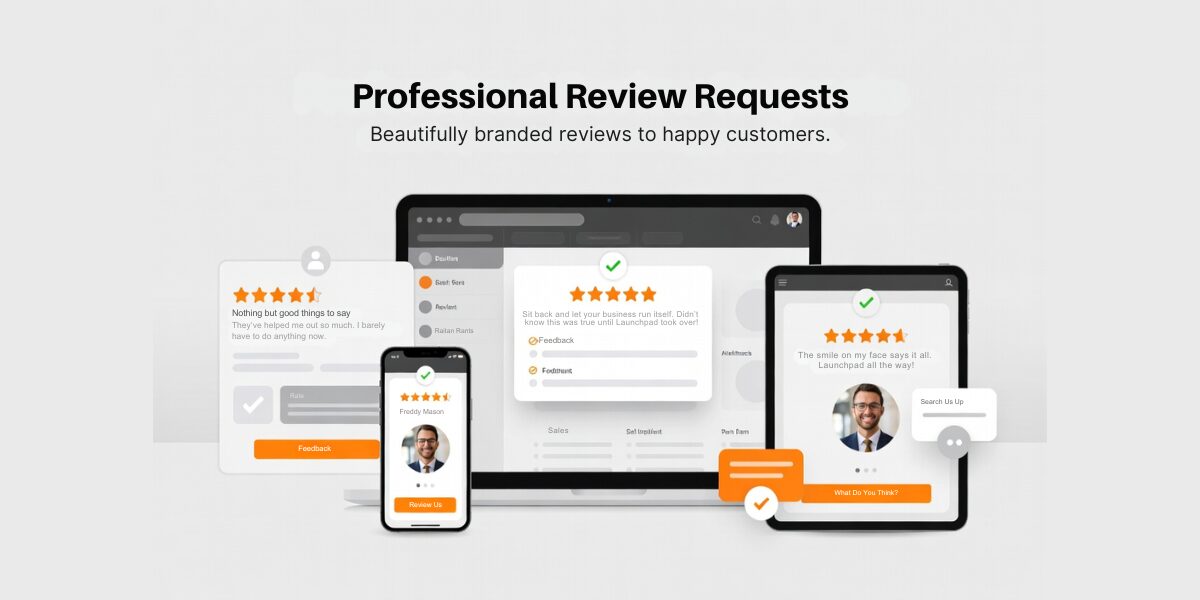
Professional Review Requests (Because "Leave Us a Review... Pretty Please?" Is So 2015)
You know you’re awesome, and deep down, your customers know it too. The problem? They forget to leave reviews. And when they finally do, it’s three months later, right after you’ve hired a whole new team and they’re busy learning your software.
With Launchpad, we make review requests as easy as pressing “send” on a text. Choose a snazzy, on-brand template, and BOOM. Your request is off and looking sharp. It’s all about timing, personal touches, and keeping it professional (without the desperation).
The Inner Mechanics:
Step 1: Create or choose a professional, on-brand review request template.
Step 2: Personalize the message with just a few clicks.
Step 3: Select the timing – send it right after a successful service or product delivery.
Step 4: Hit send and let the reviews roll in automatically!
How to Enable It in Launchpad:
Open the Launchpad app and go to the Review Requests section.
Choose a template from the available pre-designed options.
Personalize the message with your client’s name and any other details.
Set the trigger conditions (e.g., send immediately after a service, or a specific time post-purchase).
Save the template and automation to start sending requests on autopilot!
The Competitive Edge It Provides:
More reviews = more social proof = more people trusting your business. It’s like getting a gold star without the awkward chase for feedback.
When To Use This:
- A customer has just had a great experience? Send them a review request immediately. Strike while the iron’s hot!
- After a successful project or product launch, ask for feedback when the excitement is fresh.
- Want a subtle reminder that doesn’t feel pushy? Set up a drip campaign to automatically remind happy clients to leave a review.
Social Listening That Actually Listens (Because 'Listening' Isn't Just for When You're In the Room)
You’re busy. We get it. But your customers are out there chatting about you, whether you’re online or off. The question is: Are you listening?
With Launchpad’s Social Listening, we’re monitoring mentions across all the big platforms: Instagram, Facebook, X (yes, it’s still X) and we’re jumping into conversations the moment they happen. Compliments? You amplify them. Questions? You answer them before your customer even thinks about looking elsewhere. Concerns? You nip them in the bud.
What Powers It:
Step 1: Set up keyword tracking for your business, products, or relevant topics.
Step 2: Monitor mentions in real time across major social platforms.
Step 3: When a mention occurs, you’re notified instantly.
Step 4: Jump into the conversation. Respond, amplify, or address any concerns right away.
How to Enable It in Launchpad:
- Go to the Social Listening section of the app.
- Click Create New Monitor and enter the keywords you want to track (business name, product names, or hashtags).
- Connect your social media accounts (Instagram, Facebook, X, etc.) to the app.
- Set up notification preferences so you’re alerted immediately when a mention happens.
- Save your preferences and start listening!
The Value It Adds to Your Operations:
You’re staying ahead of the game. Instead of scrambling to respond to a complaint weeks after it’s gone viral, you’re building relationships in real-time. People love feeling heard. And when they do, they stick around.
Situational Benefits:
- Someone posts about how great your product is? Drop a “Thank you!” and share their post.
- A customer’s upset about something? Jump into their mentions with a helpful response, and turn the situation around before it escalates.
- Got questions? Your social team can swoop in with answers before your customers even think about Googling.

Smarter Product Collections (So Your Store Doesn’t Look Like a Garage Sale)
You know how walking into a store that’s all over the place makes you instantly want to turn around and leave? Same goes for your online store. If customers can’t find what they’re looking for fast, they’re outta there.
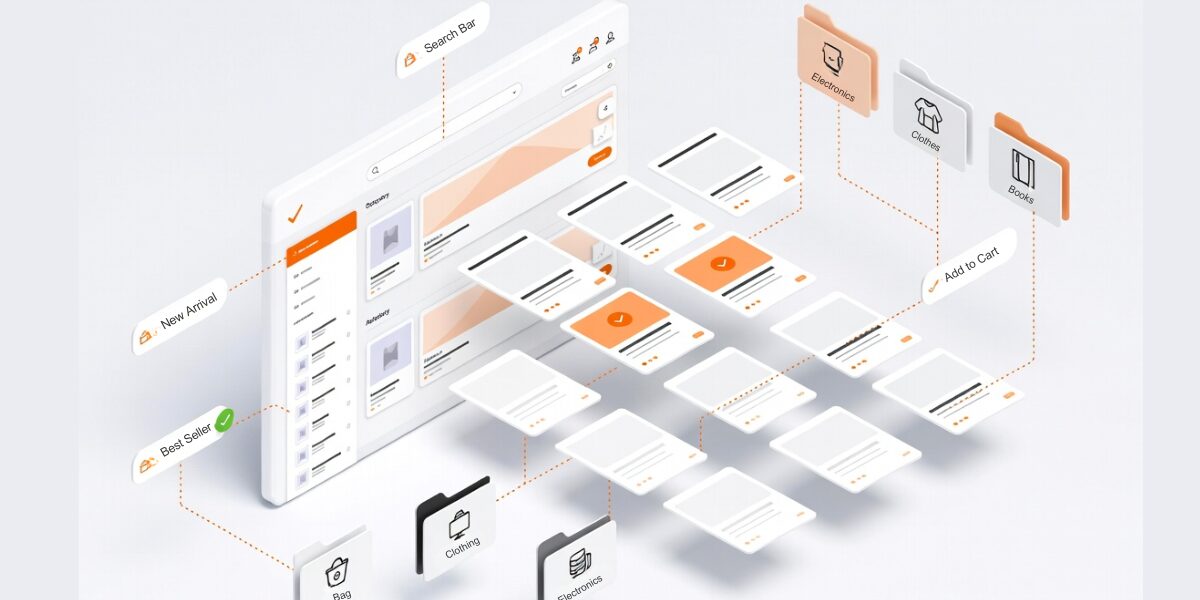
With Launchpad, we make your store smarter. We automatically organize everything into neat, logical collections, either manually or with the magic of smart tags. No more endless scrolling, no more wondering if that one thing you’re looking for is buried under 50 other items.
The Workflow That Drives It:
Step 1: Categorize your products by type, category, or smart tags.
Step 2: Use Launchpad’s auto-organizing features to group related products together.
Step 3: Products are displayed in neat, easy-to-navigate collections for customers.
Step 4: Customers find what they’re looking for in a flash. No more scrolling for hours.
How to Enable It in Launchpad:
- Open the Launchpad app and go to the Product Collections tab.
- Select Smart Tags to categorize products or create custom collections manually
- Enable Auto-Sorting to automatically group products based on type, popularity, or other criteria.
- Click Save and watch as your store magically organizes itself!
Why It’s a Must-Have for Your Team:
The faster your customers find what they want, the quicker they’re hitting that “Add to Cart” button. Less friction, more flow, and a shopping experience that feels easy, not frustrating.
How It Works In Action:
- Automatically group related products together for easy browsing (think: all your skincare products or all your best-selling books).
- Dynamically sort products by sale, popularity, or category to make them even easier to find.
- Help customers who are browsing at midnight to find what they need without scrolling through thousands of options.